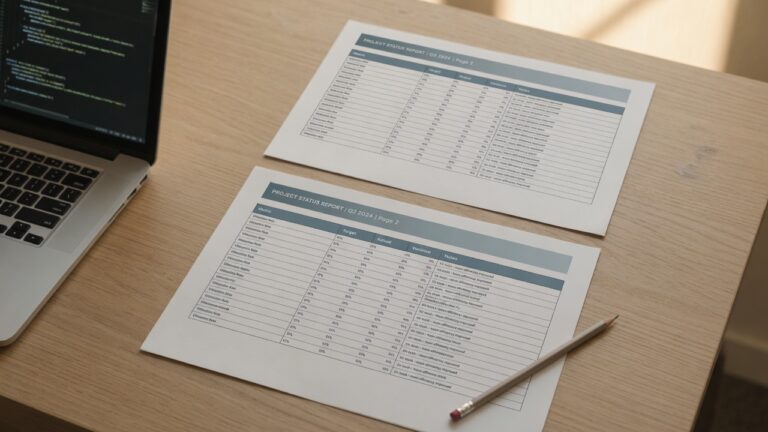
HTML to PDF in Node is one Puppeteer script. The package downloads Chrome, page.pdf() paginates the page, and you get a file. The same call covers an HTML string and a public URL. If you would rather not install Node, the HosNet HTML to PDF converter takes that URL or that HTML in the browser. The script below is the path for code.
Install Puppeteer
In an empty folder:
npm install puppeteerThe install downloads a Chrome build that matches the package. You do not point it at the Chrome already on the machine. Save the scripts on this page as html-to-pdf.js and run them with node html-to-pdf.js. They use require, so the file does not need "type": "module" in package.json.
Turn an HTML string into a PDF
This is the whole program. It loads the HTML, paints backgrounds, and writes A4 with margins. page.pdf() defaults to US Letter and leaves backgrounds off, so both options are set on purpose.
const puppeteer = require('puppeteer');

const html = `<!DOCTYPE html>
<html lang="en">
<head>
  <meta charset="utf-8">
  <title>Invoice</title>
  <style>
    body { font: 11pt/1.45 Georgia, serif; color: #111; }
    table { width: 100%; border-collapse: collapse; }
    th, td { padding: 6px 8px; border-bottom: 1px solid #ddd; text-align: left; }
    tr { break-inside: avoid; page-break-inside: avoid; }
    thead { display: table-header-group; }
    .total { background: #f4f1ea; }
  </style>
</head>
<body>
  <h1>March invoice</h1>
  <table>
    <thead><tr><th>Item</th><th>Amount</th></tr></thead>
    <tbody>
      <tr><td>Design review</td><td>480.00</td></tr>
      <tr class="total"><td>Total</td><td>480.00</td></tr>
    </tbody>
  </table>
</body>
</html>`;

(async () => {
  const browser = await puppeteer.launch();
  const page = await browser.newPage();
  await page.setContent(html, { waitUntil: 'load' });
  await page.pdf({
    path: 'invoice.pdf',
    format: 'A4',
    printBackground: true,
    margin: { top: '16mm', right: '14mm', bottom: '16mm', left: '14mm' },
  });
  await browser.close();
})();
waitUntil: 'load' is enough for HTML that does not fetch anything. networkidle2, which the Puppeteer PDF guide uses on a live site, waits until the network is almost quiet. A page that keeps a socket open never gets there, and page.pdf() then hits its 30 second timeout.
Images in that HTML need absolute URLs. setContent has no folder to resolve logo.png against.
Turn a public URL into a PDF
Swap setContent for goto. The rest of the options stay the same.
const puppeteer = require('puppeteer');

(async () => {
  const browser = await puppeteer.launch();
  const page = await browser.newPage();
  await page.goto('https://example.com', { waitUntil: 'domcontentloaded' });
  await page.pdf({
    path: 'page.pdf',
    format: 'A4',
    printBackground: true,
    margin: { top: '16mm', right: '14mm', bottom: '16mm', left: '14mm' },
  });
  await browser.close();
})();
The URL has to be public. A page behind a login comes back as the login screen, because this script sends no cookies. page.pdf() also waits for web fonts by default, which is what you want when the layout depends on them.
Print CSS, backgrounds, and page numbers
page.pdf() uses the print stylesheet. Rules inside @media print apply. A background color is still dropped until printBackground: true. The two switches are different: one chooses which CSS runs, the other tells Chrome to paint the graphics that CSS asked for.
To paginate the screen layout instead, emulate screen before the PDF call. HosNet does this. A rule that lives only inside @media print is then skipped.
await page.emulateMediaType('screen');
await page.pdf({
  path: 'screen.pdf',
  format: 'A4',
  printBackground: true,
});
Keep a table row on one page with break-inside: avoid on tr, and put the column names in thead so they repeat. The longer version of those rules is print from CSS to PDF without cutting a table in half. Write the break rule in the normal stylesheet if you also call emulateMediaType('screen').
@page { size: A4 } is ignored unless you pass preferCSSPageSize: true. Otherwise format wins. Margin boxes such as @bottom-right { content: counter(page) } are not drawn. Chrome does not implement them. Page numbers in a Puppeteer PDF come from the footer template, and the footer needs a real font size or it prints invisible. Leave room for it in the bottom margin. An empty header template stops Chrome from inserting the date and the document title on its own.
await page.pdf({
  path: 'invoice.pdf',
  format: 'A4',
  printBackground: true,
  displayHeaderFooter: true,
  headerTemplate: '<span></span>',
  footerTemplate:
    '<div style="font-size:10px;width:100%;text-align:center;">' +
    '<span class="pageNumber"></span> / <span class="totalPages"></span>' +
    '</div>',
  margin: { top: '16mm', right: '14mm', bottom: '20mm', left: '14mm' },
});
When the script exits before a PDF exists
- The first
npm installfailed halfway. Chrome is missing andpuppeteer.launch()throws. Run the install again on a connection that can finish the download. - Linux CI refuses the sandbox.
puppeteer.launch({ args: ['--no-sandbox'] })is the usual workaround. It turns off a Chrome protection, so it belongs on a locked-down build agent, not on a desktop. - The PDF call times out at 30 seconds. The page never went quiet, or a font never loaded. Prefer
domcontentloadedovernetworkidle2, or passtimeout: 0onpage.pdf()only after you know the page is the problem. - The layout is a shrunken web page. You are still on screen CSS with a centered
max-width, orformatand your@pagesize disagree. Set the format, or setpreferCSSPageSize: trueand the@pagesize, not both by accident. - Flexbox or grid collapsed. That is the old wkhtmltopdf engine, not this one. Puppeteer is current Chrome. The gap that engine leaves is covered in a wkhtmltopdf alternative for modern CSS.
Skip Node when you only need the file
The script is the right tool when the PDF is a step in a job you already run on a server. For one invoice or one public page, paste the HTML or the URL into the HTML to PDF converter. It renders with Chrome, keeps CSS and background colors, and deletes the file after a short time. Pick A4 and the margins there. Those controls set the paper. The converter does not read @page size, and it renders the screen layout, so put break-inside in the normal CSS if the row has to stay whole.