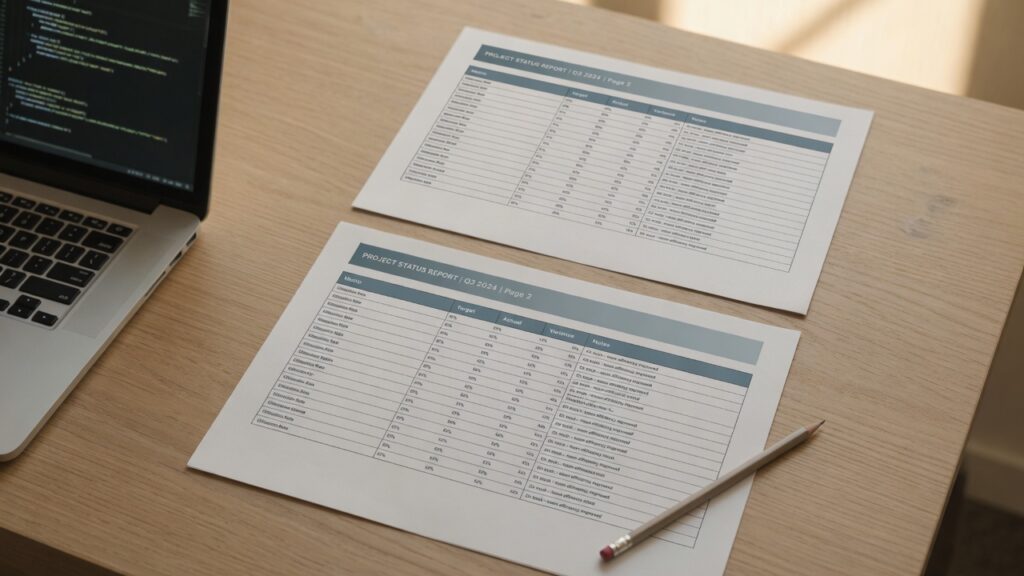
A table row lands on two pages because the print engine is allowed to break inside it. Stop the break on the row, repeat the header, and set the paper size. The HosNet HTML to PDF converter renders the screen layout with Chrome and then paginates it, with backgrounds kept. A break-inside rule in your normal CSS reaches that PDF. A rule that lives only inside @media print is for the browser’s print dialog, and this converter skips it.
Why the row ends up on two pages
On screen the page is one long column. In a PDF it is a stack of fixed sheets. The engine fills a sheet and continues on the next one at whatever line happens to fall on the edge. A table row is just lines, so half of a total, a name, or a price can sit on the next page.
The default is break-inside: auto. Nothing in a normal screen stylesheet tells the printer to keep a row together. Chrome’s Save as PDF, headless Chrome, and most browser-based converters share this behavior. The split is not a bug in the table. The stylesheet never asked for anything else.
Keep the row on one page
Put the avoid rule on the row, the card, or the figure. Leave a long table free to break between rows.
@media print {
  tr,
  figure,
  .card {
    break-inside: avoid;
    page-break-inside: avoid;
  }

  h2,
  h3 {
    break-after: avoid;
    page-break-after: avoid;
  }
}
Write both properties. Current Chrome reads break-inside. Older engines, including wkhtmltopdf, only read page-break-inside. The heading rule keeps a title with the paragraph under it, so you do not get a heading alone at the bottom of a sheet. If the PDF is made from the screen layout, copy the same declarations outside @media print as well. The sample at the bottom of this page is written that way.
Do not put break-inside: avoid on a table that runs for three pages. The engine will try to move the whole table to the next sheet, fail, and split it anyway, often after a blank gap. Rows can stay whole. The table as a whole has to be allowed to continue.
Repeat the header on the next page
Once rows stay intact, the next page still needs its column names. Browsers do this when the header is a real thead.
@media print {
  thead {
    display: table-header-group;
  }
  tfoot {
    display: table-footer-group;
  }
}
The HTML has to match. A header made of the first tr inside tbody will not repeat. Use thead for the labels and tbody for the data. A footer with the grand total belongs in tfoot, so it stays with the end of the table instead of appearing once on page one and never again.
Set the paper, then the type
Screen margins and a max-width on a centered column are what make a PDF look like a shrunken web page. Tell the printer the sheet size directly.
@page {
  size: A4;
  margin: 16mm 14mm;
}

@media print {
  body {
    font-size: 11pt;
    line-height: 1.45;
    color: #111;
    background: #fff;
  }

  nav,
  footer,
  .no-print {
    display: none;
  }
}
Use points for type. A point is 1/72 of an inch, which is the unit the page is already using. Pixels are a screen unit and come out smaller than people expect on paper.
Those @page rules apply when the browser prints. HosNet sets the paper from the page size and margin controls on the tool, so pick A4 or Letter there. The converter also paints backgrounds, which Chrome’s print dialog hides until “Background graphics” is on.
@media print {
  .total {
    background: #f4f1ea;
    -webkit-print-color-adjust: exact;
    print-color-adjust: exact;
  }
}
What this CSS will not do in Chrome
A running page number written like this is CSS paged media, and Chrome does not draw it:
@page {
  @bottom-right {
    content: counter(page) " / " counter(pages);
  }
}
Prince and WeasyPrint implement those margin boxes. Chrome, and a converter built on Chrome, ignores them. If the number has to be inside the file, put it in the HTML. The viewer’s own page indicator is the other honest option.
wkhtmltopdf is a step further back. It misses flexbox, grid, and much of break-*, which is why a stylesheet that looks right in Chrome still falls apart there. The longer note on that gap is a wkhtmltopdf alternative that keeps modern CSS.
Two more things that survive in a browser window and die on paper: a sticky header, and a link that only makes sense in color. Under @media print, turn sticky positioning off and let links inherit the text color. Chrome’s own Save as PDF dialog adds a date and a URL in the margin. Those are the browser’s chrome, not your CSS. The limits of that dialog are covered in what Chrome’s Save as PDF leaves out.
A table you can paste and print
This is the smallest document that shows the three rules together: paper size, a row that cannot split, and a header that repeats. The break rules sit in the normal stylesheet, so they apply in a print dialog and in a converter that renders the screen. Open it in a browser and choose Print, or paste it into the HTML to PDF converter and choose A4.
<!DOCTYPE html>
<html lang="en">
<head>
  <meta charset="utf-8">
  <title>Invoice</title>
  <style>
    @page { size: A4; margin: 16mm 14mm; }
    body { font: 11pt/1.45 Georgia, serif; color: #111; }
    table { width: 100%; border-collapse: collapse; }
    th, td { text-align: left; padding: 6px 8px; border-bottom: 1px solid #ddd; }
    tr { break-inside: avoid; page-break-inside: avoid; }
    thead { display: table-header-group; }
    td.num { text-align: right; font-variant-numeric: tabular-nums; }
  </style>
</head>
<body>
  <h1>March invoice</h1>
  <table>
    <thead>
      <tr><th>Item</th><th class="num">Amount</th></tr>
    </thead>
    <tbody>
      <tr><td>Design review</td><td class="num">480.00</td></tr>
    </tbody>
  </table>
</body>
</html>
Add as many body rows as the real invoice has. The header row comes back at the top of each new sheet, and a row that does not fit moves as a whole.
Check the last row of every page
Print preview is the test. Look only at the bottom line of each page.
- If a row is sliced,
break-inside: avoidis missing ontr, or a parent withoverflowother thanvisibleis blocking it. Chrome will not avoid a break inside a box that clips. - If a whole row falls off the right edge, something inside it is
white-space: nowrapor a URL with no break opportunity. Let that cell wrap. A row that cannot split and cannot wrap has nowhere to go. - If the header appears once and then never again, the labels are not in
thead. - If the type looks huge or tiny, the body is still sized in pixels.
When print preview looks right and the downloaded PDF does not, the converter is not reading @media print. Copy the break rule out of that block and into the normal stylesheet. A screenshot tool would flatten the page to a picture. HosNet keeps the CSS and paginates it, which is the same reason layout survives the conversion.